
Login to WishKing in Canada: Sign In to Your Account
Access your WishKing account through the official website or the mobile app using your registered email or phone number. The sign in process takes under a minute, with SSL encryption and optional two-factor authentication protecting your personal information at every step. Once logged in, your bonuses, transaction history, active bets, and full game library are immediately available, 24 hours a day, 7 days a week.
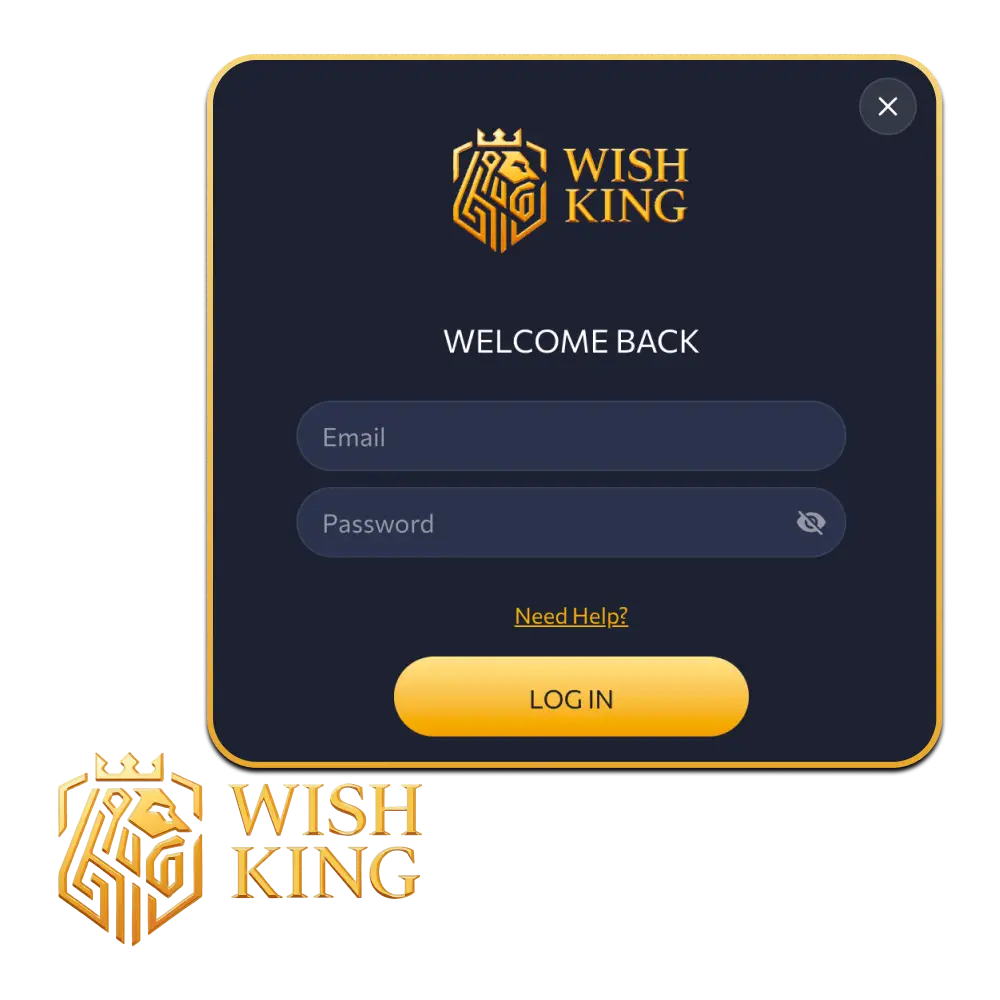
WishKing Account Login Options in Canada
The WishKing official website offers several ways to access your account, so you can sign in using whichever method fits your device and preferences. Each login path connects directly to your profile, bonuses, and pending withdrawals without requiring additional verification steps after the first login. You can sign in by Email, by Phone Number, or via a social network account linked during registration.
By Email
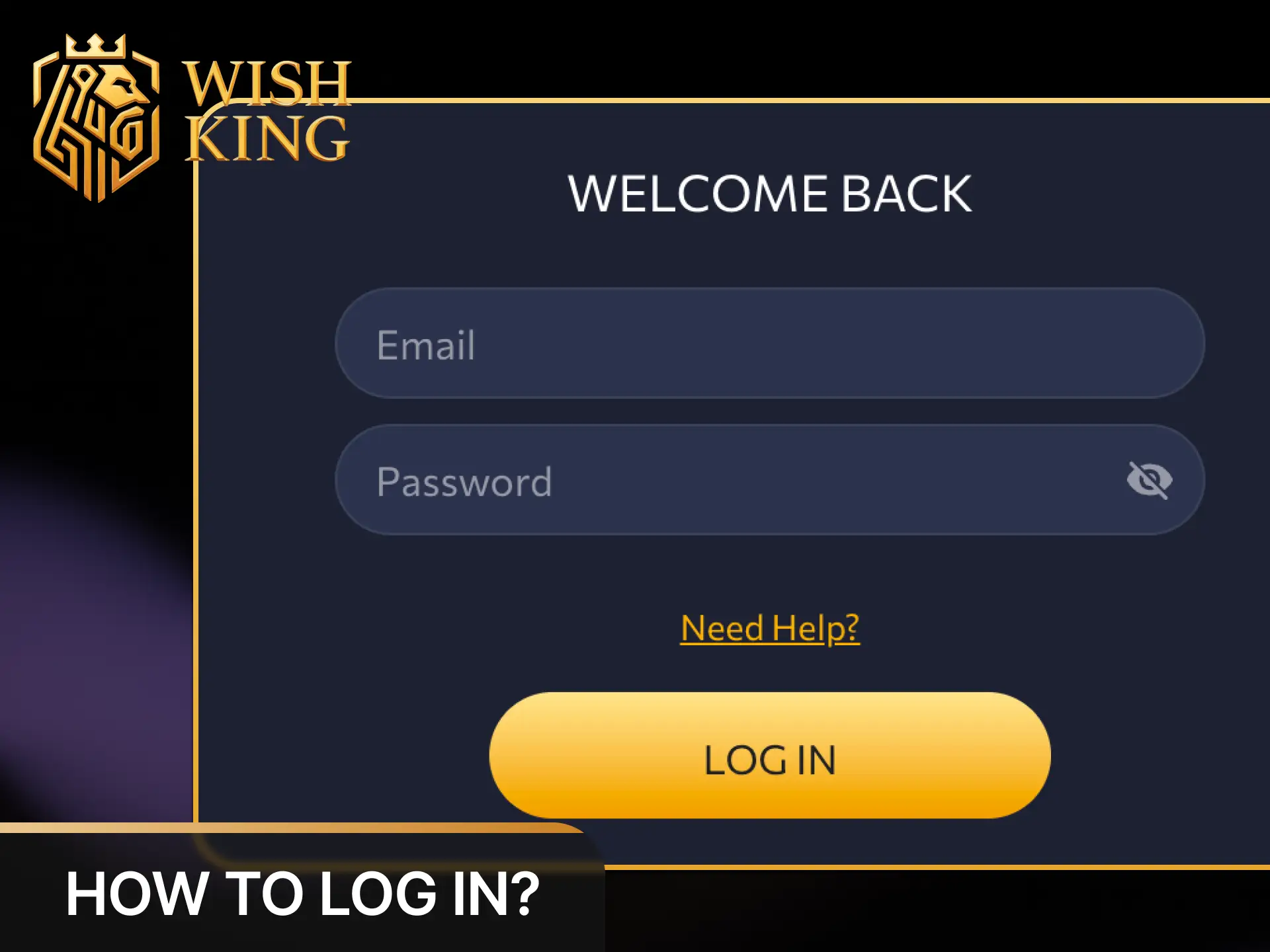
Email login is the most common access method on the platform and works on all devices without any additional software. Your registered email address and password are all you need to reach your full account dashboard. Two-factor authentication can be enabled for added security on this login path.
- Open the WishKing website and click the “Log In” button in the top right corner of the screen.
- Select the “Email” tab in the login window.
- Enter your registered email address in the first field.
- Type your account password in the second field.
- Click “Sign In” to access your account.
By Phone Number
Phone number login is a fast alternative that skips the need to recall an email address. After entering your number, a one-time code is sent via SMS for verification, replacing a static password. This process is particularly convenient if you switch devices frequently.
- Click “Log In” on the WishKing homepage to open the account access screen.
- Choose the “Phone” tab from the available login options.
- Select your country code (Canada: +1) and enter your registered mobile number.
- Receive the SMS confirmation code and enter it in the verification field.
- Tap “Confirm” to complete the sign in and reach your account.
Via Social Networks
Social login lets you connect an existing account from a supported network to access your WishKing profile without setting a separate password. This method is available if you linked a social account during the registration process. It reduces the number of credentials you need to manage.
- Visit the WishKing site and select “Log In” from the top navigation area.
- Locate the social login icons displayed below the standard credential fields.
- Click the icon corresponding to the social network linked to your account.
- Authorise the connection in the pop-up window from the selected network.
- You will be redirected back to your WishKing account dashboard automatically.
Login at WishKing via App
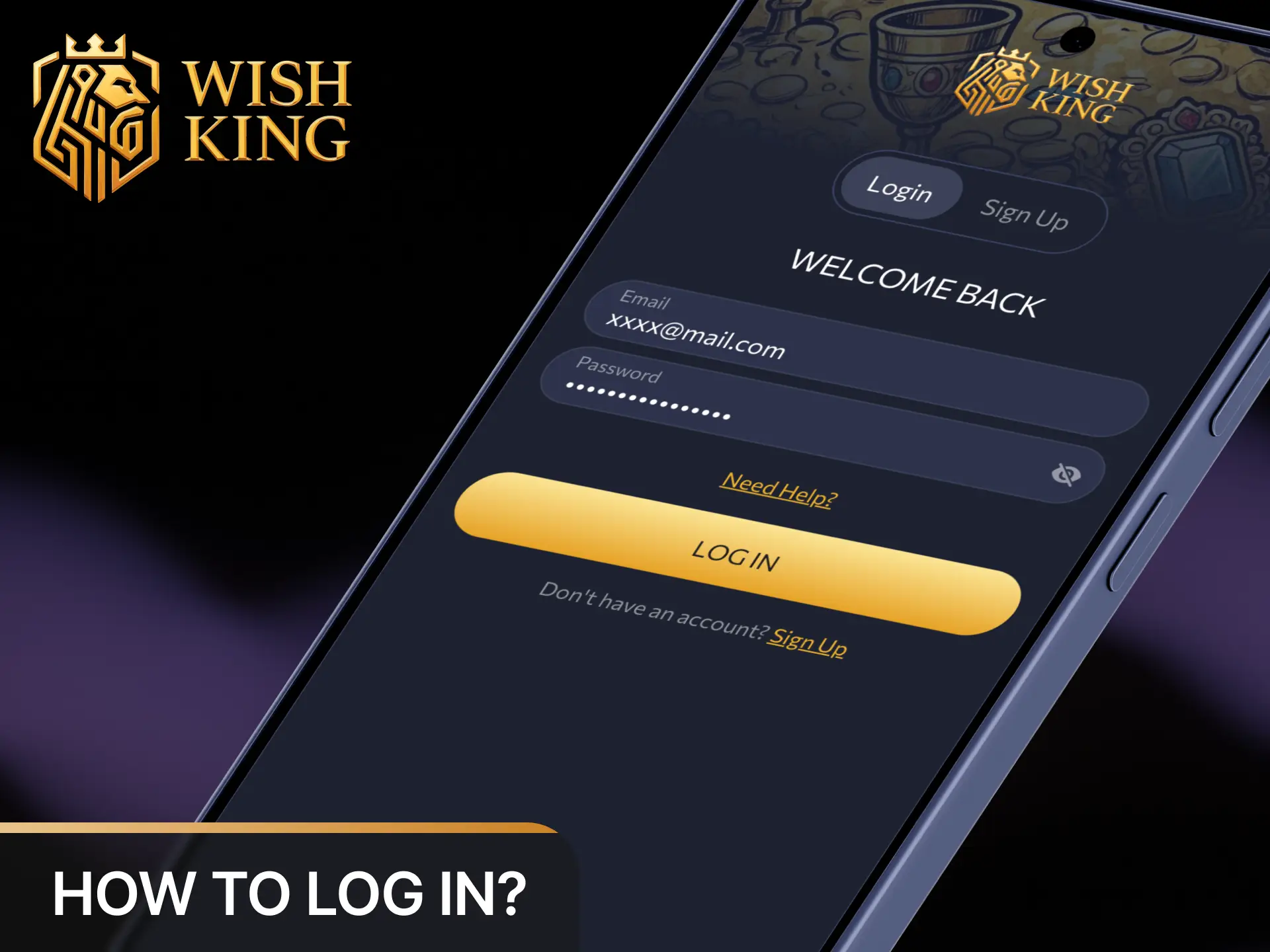
WishKing provides a mobile-optimised progressive web app (PWA) rather than a native downloadable application, meaning no app store is involved and no storage space is used on your device. The PWA loads directly in your mobile browser and delivers the same account access, game library, and sportsbook features as the full desktop site. All login methods available on the website, including Email, Phone Number, and Social Networks, work identically within the PWA.
- Open this website in your mobile browser (Safari on iOS, Chrome on Android) and tap the “Log In” button at the top of the screen.
- To install the PWA for faster future access, tap your browser’s share or menu icon and select “Add to Home Screen.”
- Once the PWA icon appears on your home screen, tap it to launch the platform directly.
- On the login screen, choose your preferred method: Email, Phone Number, or Social Networks.
- Enter your credentials or complete the SMS verification step, then tap “Sign In” to reach your account.
Possible Account Login Problems on WishKing and Their Solutions
Most access issues on the platform are resolved by correcting credentials or clearing browser cache, and the guide below covers the most frequently reported cases. If your specific issue is not listed here, the WishKing support team is available 24/7 via live chat directly on the site.
| Problem | Solution |
|---|---|
| Incorrect Password Entered | Use the “Forgot Password” link on the login screen to reset your password via email or SMS. |
| Account Temporarily Blocked After Multiple Failed Attempts | Wait 15 minutes before retrying, or contact live chat support to expedite access restoration. |
| SMS Verification Code Not Received | Check that your registered phone number is correct, then request a new code; allow up to 2 minutes for delivery. |
| Social Network Login Not Connecting | Confirm that the social account you are using matches the one linked during registration; try clearing browser cookies first. |
| Page Not Loading or Login Button Unresponsive | Clear your browser cache, disable VPN if active, or switch to a different browser to resolve technical display issues. |
Recovering a Forgotten Password
If you cannot recall your password, the account recovery process on WishKing takes only a few steps and can be completed via email or registered phone number. Your account balance, bonuses, and transaction history remain fully intact throughout the reset process. After setting a new password, all active sessions on other devices are automatically logged out for your security.
- Click “Log In” on the official site, then select “Forgot Password” beneath the credential fields on the login screen.
- Choose your recovery method: by Email or by Phone Number.
- Enter the email address or phone number associated with your account and submit the request.
- Check your inbox or SMS for the reset link or one-time code, then follow the instructions provided.
- Create a new password of at least 8 characters, confirm it in the second field, and save the changes to restore full account access.
FAQ
Can I be logged in on more than one device at the same time?
Yes, your account can be active on multiple devices simultaneously. If you need to close all sessions remotely, contact live chat support and they can terminate active sessions on your behalf.
Is a verified account required before I can log in?
You can log in immediately after registration. Full KYC verification is required only before processing your first withdrawal, not for account access or placing bets.
How do I update the email address linked to my account?
Email changes require contacting the support team through live chat on the site. Provide your current registered email and identity confirmation, and the update is processed by the WishKing team directly.
What security options are available to protect my account after sign in?
Two-factor authentication (2FA) is available and can be enabled from your account security settings after logging in. Activating 2FA adds an SMS confirmation step each time you sign in from an unrecognised device.
Is there a demo or guest mode that lets me browse without logging in?
Selected casino slots can be previewed in demo mode without an account on the WishKing platform. However, live dealer tables, sportsbook features, and all real-money functions require a full sign in.
Updated: